Manual Widget Installation
This guide shows you how to manually add the Widget Builder JavaScript bundle to your Staffbase platform. This is typically done when the automated widget registration process fails, but can also be used if you need to reconfigure or update the widget bundle URL.
Prerequisites
- You must be a Staffbase administrator
Steps to manually add the Widget Bundle
-
Copy the Widget Bundle URL from Settings
In the Widget Builder, open the pageSettingsand copy the displayed Widget Bundle URL to your clipboard. You can either click on the URL or on the copy button. Then click on theCustom Widgetsbutton.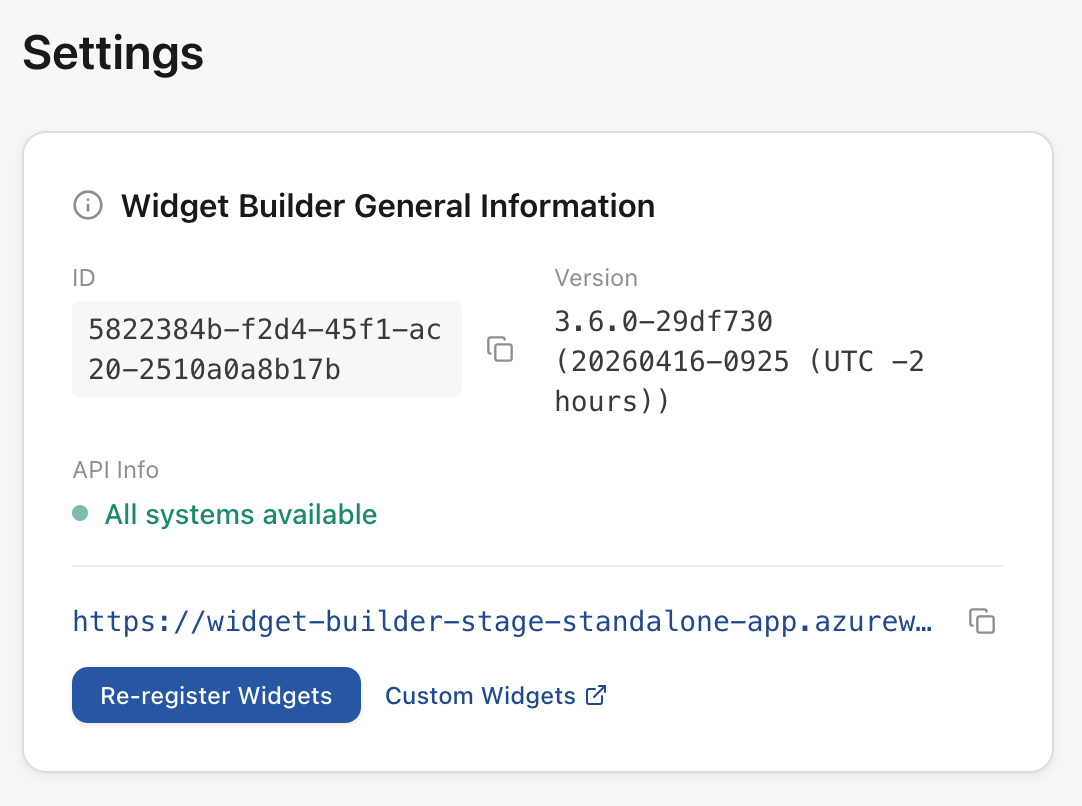
-
Add the Widget Bundle URL
A new tab will open with theCustom Widgetsdialog from Staffbase Studio. Paste the copied URL into theWidget Bundleinput field and confirm by clicking theInstallbutton.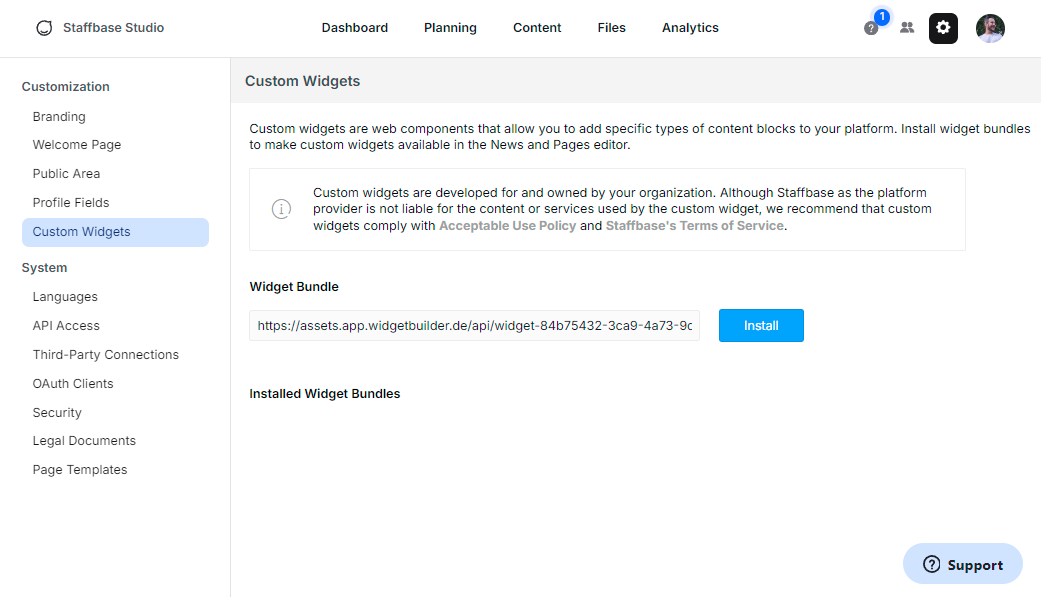
-
Installation completion
The installation process is now complete. All users of the registered Staffbase platform can now use the custom widgets on pages.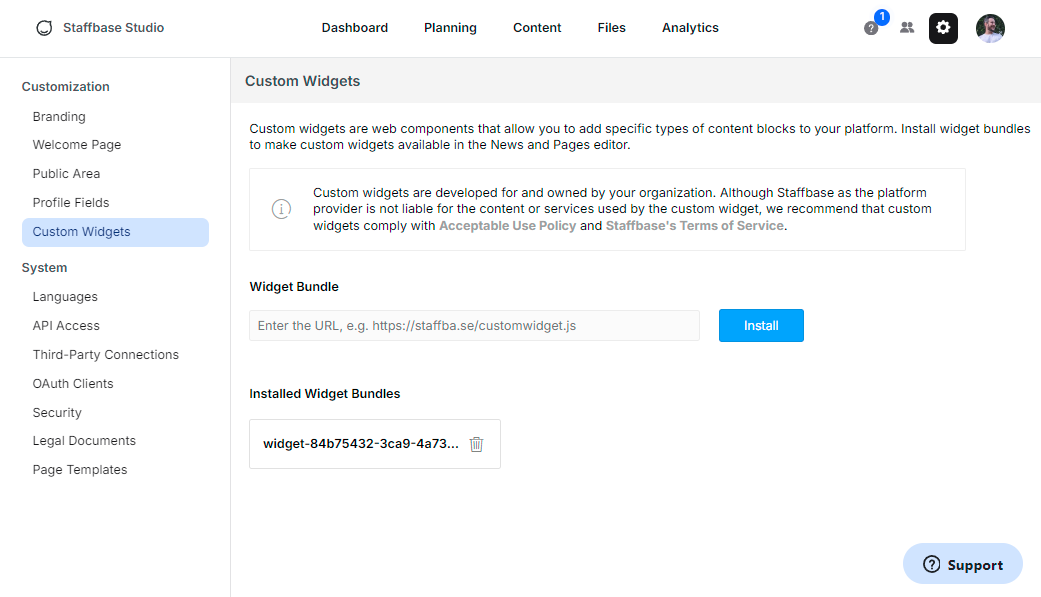
Troubleshooting
If the widgets are not appearing after installation:
- Verify that the Widget Bundle URL was pasted correctly
- Ensure your Staffbase platform has the necessary permissions
- Check that the OAuth configuration is still active
- Try refreshing the Staffbase Studio page
For more help, see the Troubleshooting guide.