Data Tables
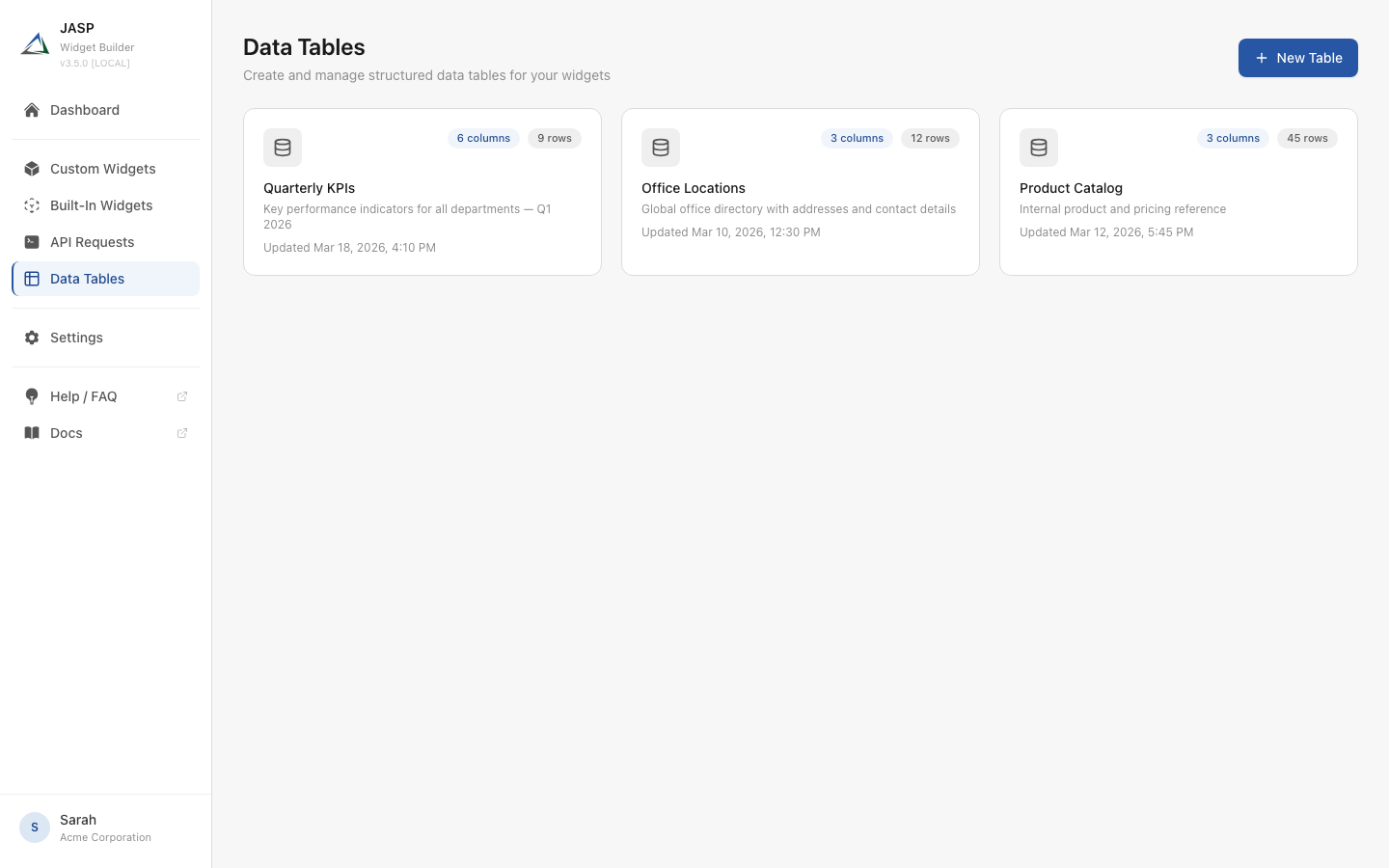
Data Tables let you store and manage structured data directly inside the Widget Builder. Instead of connecting an external API, you can create tables with typed columns, enter data manually or via CSV import, and use that data in your widgets.
What are Data Tables?
A Data Table is a structured dataset with defined columns and rows — similar to a spreadsheet. Each table has:
- Columns with a name, a data type (Text, Number, Date, Select, Boolean, JSON), and optional validation rules
- Rows containing the actual data, editable directly in the Widget Builder or via the Data Editor
- Permissions to share tables with Staffbase groups for collaborative editing
Key Features
Column Types
| Type | Description | Example |
|---|---|---|
| Text | Free-form text with optional min/max length and regex validation | Product names, descriptions |
| Number | Numeric values with optional min/max range | Prices, quantities, KPI targets |
| Date | Calendar dates in ISO format | Deadlines, event dates |
| Select | Dropdown with predefined options | Departments, categories, statuses |
| Boolean | Yes/No checkbox | Active flags, achievement status |
| JSON | Arbitrary structured data | Configuration objects, metadata |
Data Management
- Manual entry — Add and edit rows directly in the browser with inline editing
- CSV import — Upload CSV files with automatic column mapping, timezone handling, and append/replace modes
- Filtering and sorting — Find specific rows using column filters and sortable headers
- Pagination — Navigate large datasets efficiently
Permissions and Sharing
Share tables with Staffbase groups to enable collaborative data editing:
- Editor access — Group members can add, edit, and delete rows
- Read only access — Group members can view data but not modify it
- Data Editor link — A dedicated URL that opens a simplified editing interface for shared users
Data Editor
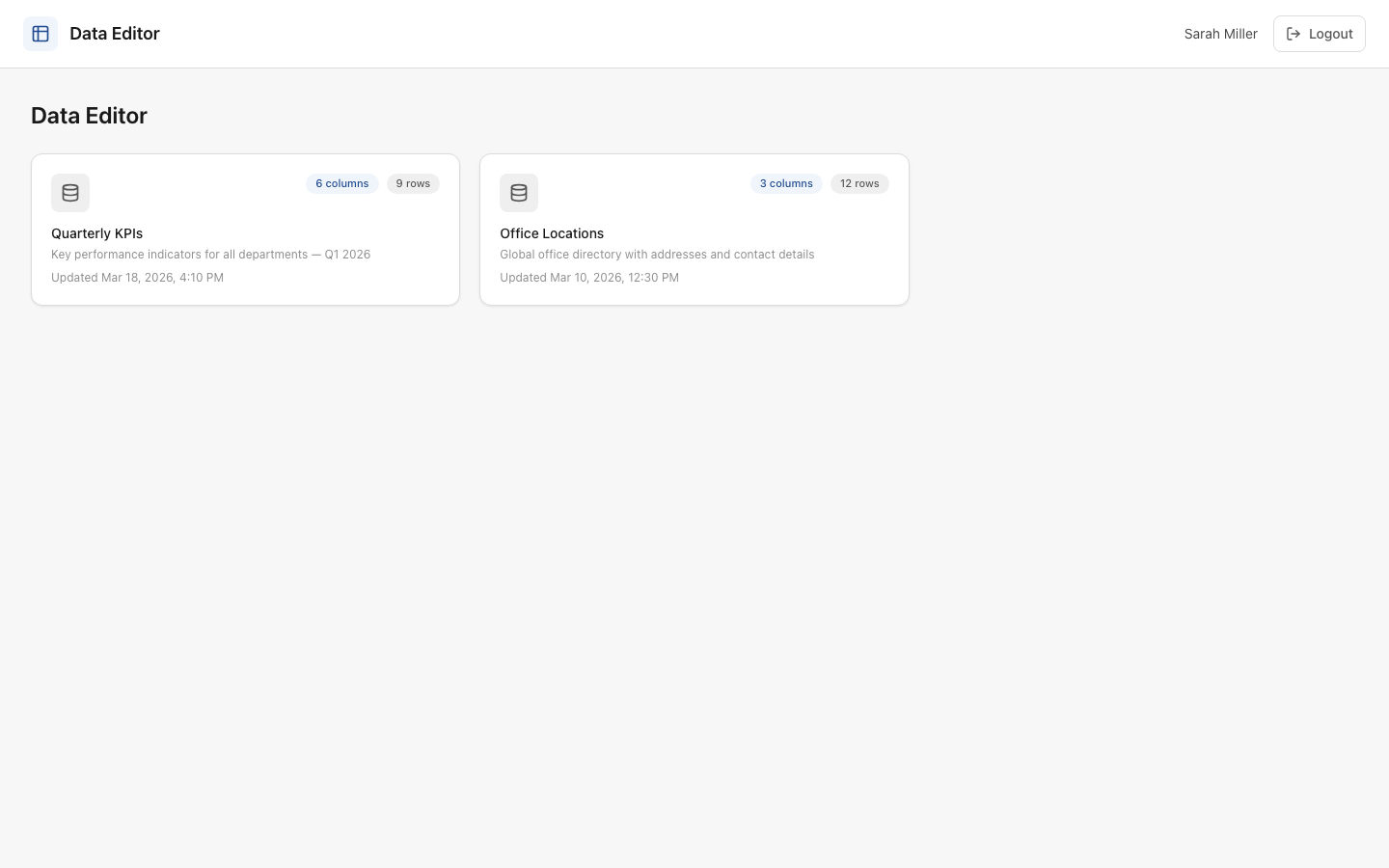
The Data Editor is a standalone interface at /data-editor designed for users who only need to manage row data — without access to the table structure, column definitions, or widget configuration.
When you share a table with a Staffbase group, those group members can open the Data Editor link to view and edit the table's rows directly. The Data Editor:
- Shows only the tables that have been shared with the user's Staffbase group
- Allows adding, editing, and deleting rows (if the group has Editor permissions)
- Does not allow changing the column schema, renaming the table, or managing permissions
- Provides a clean, focused interface without the full Widget Builder navigation
This makes the Data Editor ideal for delegating data maintenance to content managers, HR teams, or department leads who need to keep data up to date without touching the widget configuration.
Using Data Tables in Widgets
Once your table has data, you can use it as a data source in any custom widget. In the widget editor's API tab, select a Data Table instead of an external API endpoint. The widget template can then access the table data via Handlebars:
Next Steps
Follow the step-by-step tutorial to create your first Data Table:
Create a Data Table — Build a KPI tracking table from scratch with columns, data, and permissions.